How to restore the factory settings of P-7 Pro?

Quote from GPSWebShop Official on December 4, 2025, 11:53 am
1. Download the GNSSToolKit for Windows.
2. Please use the command “PQSETCNST,47” to restore the factory settings of the P-7.
Note: After the command is successfully sent, the NMEA View window will return “$PQSETCNSTOK*4D”, indicating that the command was accepted.
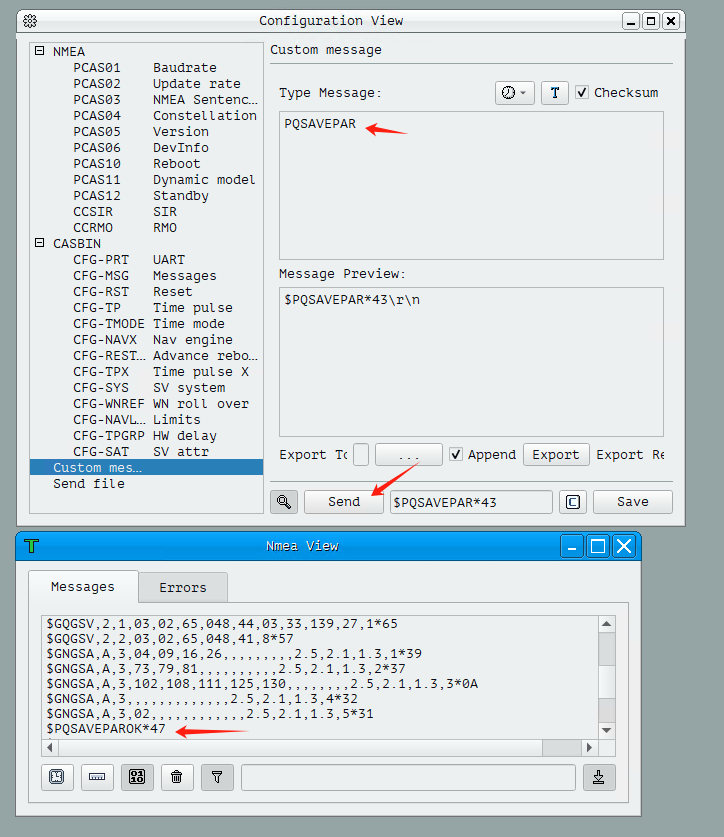
3. Next, send the command “PQSAVEPAR” to save the settings. The response “$PQSAVEPAROK*47” will confirm that it was successful.
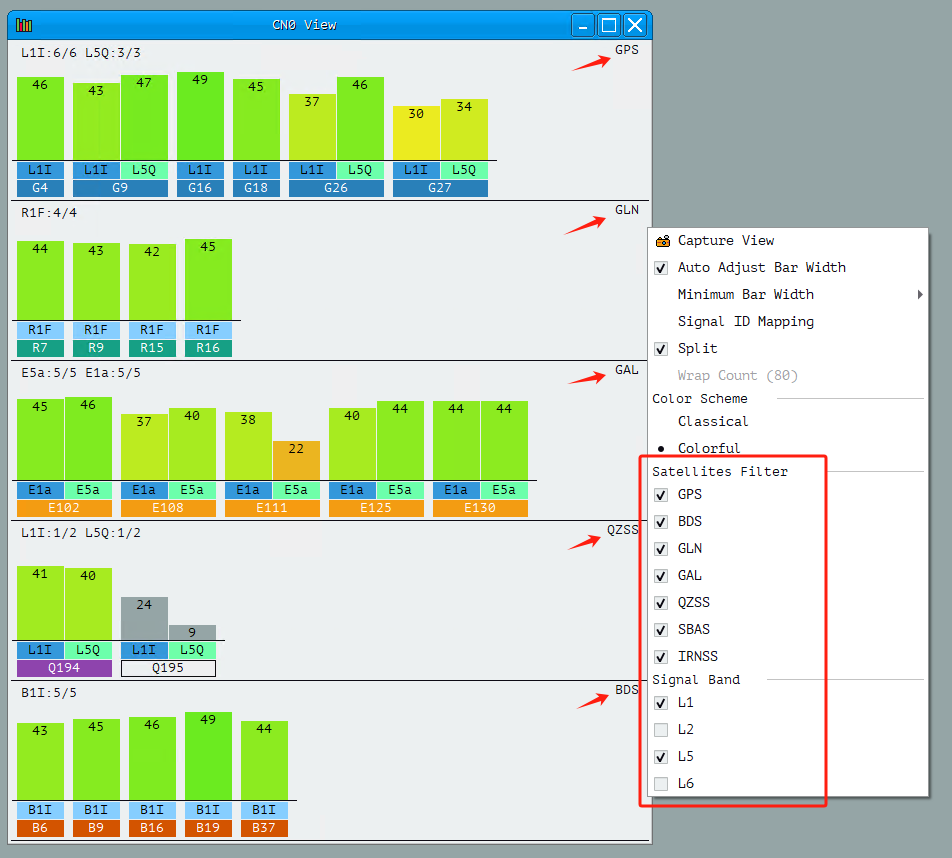
4. At this point, power off the P-7 and then power it on again. Open the CN0 View window to observe the signal strength of the received satellites. Right-click in this window and select all satellite systems, and check both the L1 and L5 bands. You may need to wait approximately 5–10 minutes in an open outdoor area for all constellations to lock in.
As shown in the figure, from top to bottom, the systems are: GPS, GLONASS, Galileo, QZSS, and BeiDou.
1. Download the GNSSToolKit for Windows.
2. Please use the command “PQSETCNST,47” to restore the factory settings of the P-7.
Note: After the command is successfully sent, the NMEA View window will return “$PQSETCNSTOK*4D”, indicating that the command was accepted.
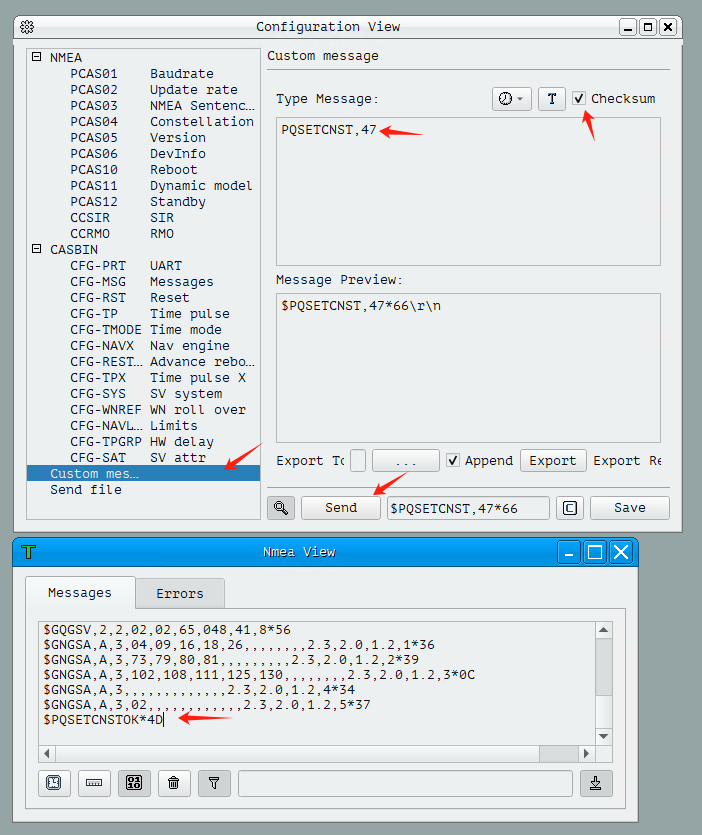
3. Next, send the command “PQSAVEPAR” to save the settings. The response “$PQSAVEPAROK*47” will confirm that it was successful.
4. At this point, power off the P-7 and then power it on again. Open the CN0 View window to observe the signal strength of the received satellites. Right-click in this window and select all satellite systems, and check both the L1 and L5 bands. You may need to wait approximately 5–10 minutes in an open outdoor area for all constellations to lock in.
As shown in the figure, from top to bottom, the systems are: GPS, GLONASS, Galileo, QZSS, and BeiDou.
Quote from GPSWebShop Official on December 9, 2025, 1:49 pmIf you send the command but receive no response, please check the following two items:
1. The default baud rate of the P-7 Pro is 57,600 bps. If the baud rate has not been changed previously, the command must be sent using this baud rate.
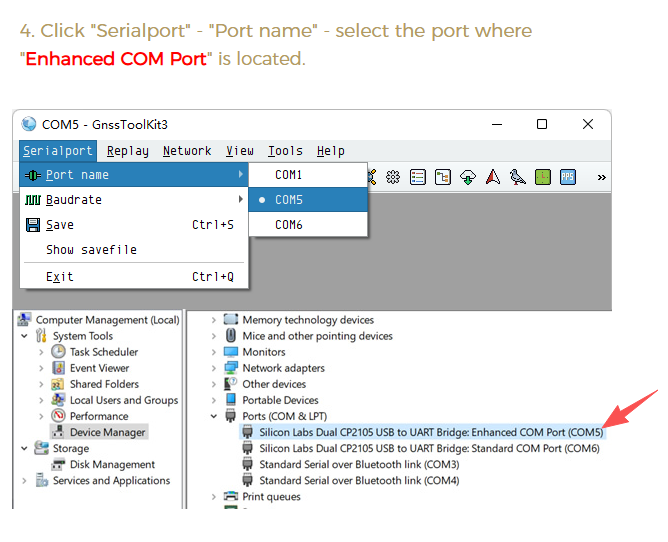
2. The P-7 Pro has two serial ports. Please make sure you are connected to the “Enhanced COM Port”.
If you send the command but receive no response, please check the following two items:
1. The default baud rate of the P-7 Pro is 57,600 bps. If the baud rate has not been changed previously, the command must be sent using this baud rate.
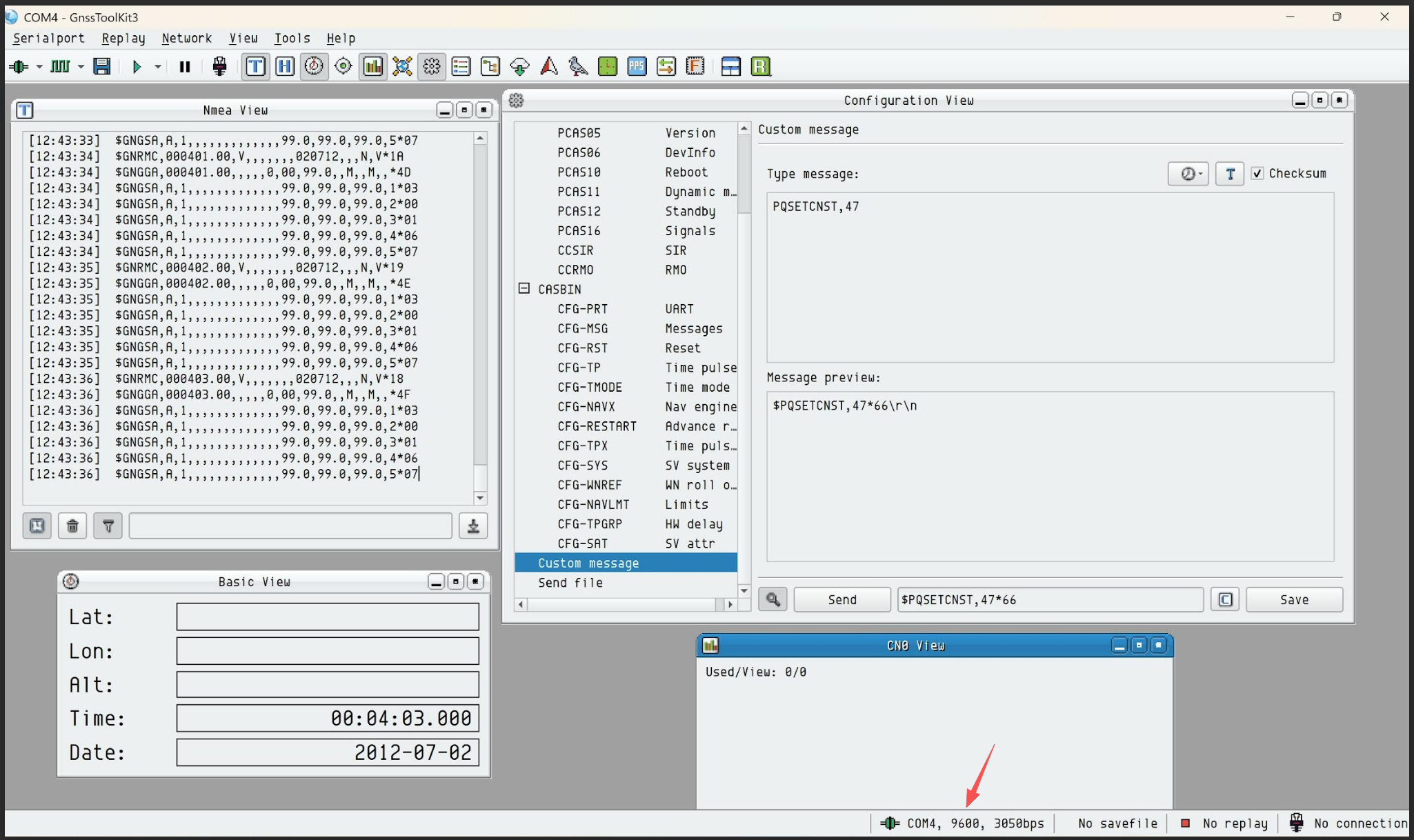
2. The P-7 Pro has two serial ports. Please make sure you are connected to the “Enhanced COM Port”.